Wechat
Busuness account

This page walks you through Redfinger Android sign up and forgot password in simple steps, so you can register Redfinger Android fast and retrieve Redfinger password safely. Redfinger keeps your cloud device online while you handle account access. Trust signals: • Launched in 2015, serving global users.  • 5,000,000+ installs and ~34.5K reviews (3.6 rating) on Google Play. • ISO/IEC 27001, ISO/IEC 27701, ISO 9001 certified for security and quality. • Server regions include the US, Taiwan and Singapore for stable access.
Sign in
When opening Redfinger Application, you are required to agree to the notification that popped up. It should be noted that you need to register an account before using Redfinger App.
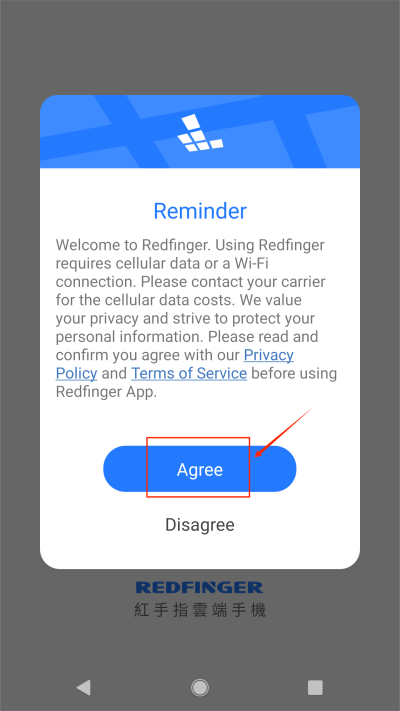
Open the Redfinger App, select the server close to your region, click "Next", then enter the Redfinger login interface;
Sign up with a valid email; (Those "malicious sign-up, request free trial device and then ditch it" behavior is not tolerated and will be banned to use.)
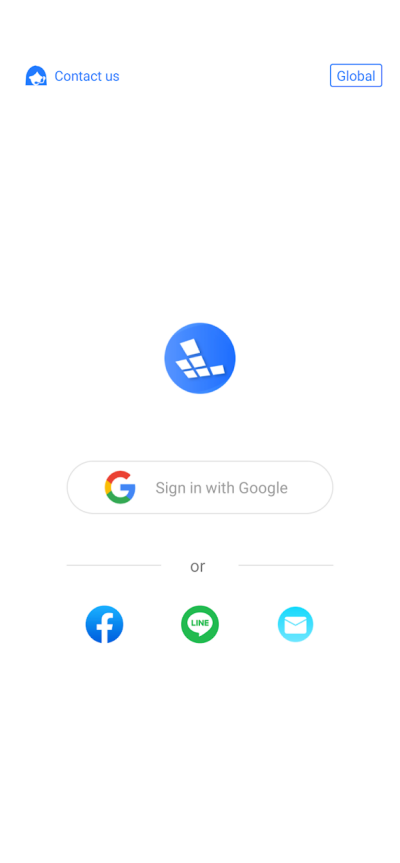
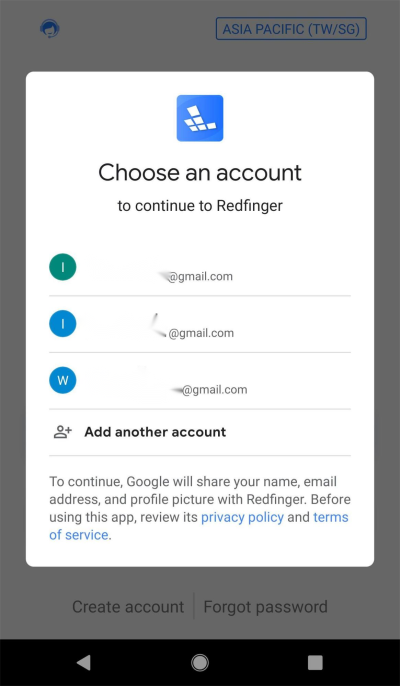
Sign in directly with your Google account with no hassle. (The email linked to your Google account will be your Redfinger account. Later if you log in on the computer, you need to set and change your password.)
Forgot password
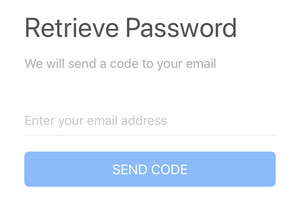
A1: Check Spam/Promotions, then add Redfinger to your safe senders and request a new code. Make sure the email matches the account you used to register Redfinger Android. If you still can’t receive it, try a different network or re‑open the app and repeat the Redfinger Android sign up and forgot password flow.
A2: Yes. You can sign in with Google to start quickly. Your Google email becomes your account, and you can set a password later for desktop or web login. This keeps Redfinger Android sign up and forgot password simple while ensuring you can retrieve Redfinger password across platforms.
A3: After login, go to Profile > Security to set a password. This lets you sign in Redfinger Cloud Phone on Windows or the web. If you ever forget it, use the Redfinger Android forgot password steps to retrieve Redfinger password and regain access.
A4: Codes are time‑limited and tied to the most recent request. Stay on the reset screen, request a new code, and enter it immediately. Make sure your device time is set automatically. If issues persist, repeat the Redfinger Android forgot password flow or contact support with your register Redfinger Android email.
Start now: complete Redfinger Android sign up, or use the Redfinger Android forgot password flow to retrieve Redfinger password in minutes. Keep your cloud phone always‑on for work and play — then manage it smoothly on Android, Windows, or the web.
Try the best Android emulator to unleash the potential of your apps and cloud games across all platforms.
GET STARTED