Wechat
Busuness account

Mulai saja dengan Redfinger web login. Setelah Redfinger for web login, Anda bisa melihat, mengontrol, dan berbagi akses cloud phone via web—tanpa instalasi. Redfinger melayani pengguna sejak 2015 dan mengikuti ISO/IEC 27001, ISO/IEC 27701, serta ISO 9001, jadi Redfinger web login tetap aman dan patuh standar. Di Google Play, Redfinger mencatat 5M+ instal, rating ±3,8 dari ±32K ulasan, sehingga pengalaman cloud phone web login telah teruji skala besar  . Halaman ini merangkum Redfinger web login steps dan menyediakan tautan cepat ke Authorization untuk kolaborasi tim (/userbook/web/authorization-redfinger-web.htm)

What is Redfinger web login and why should you use it?
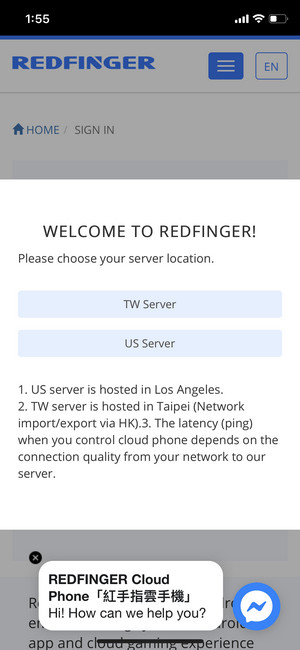
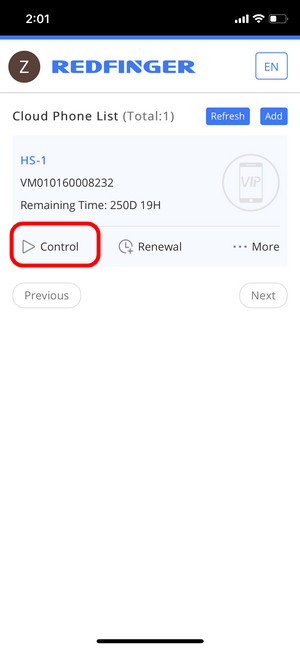
Redfinger web login lets you log in from your browser and control your Android cloud devices running 24/7. After logging in to Redfinger web, you'll see a list of cloud phones and select an instance to start using. Redfinger web login supports three major browsers (Chrome, Safari, Firefox), making accessing your work and gaming experience simple. If you prefer a one-touch experience, combine Redfinger web login with the "Add to Home Screen" feature on your phone.
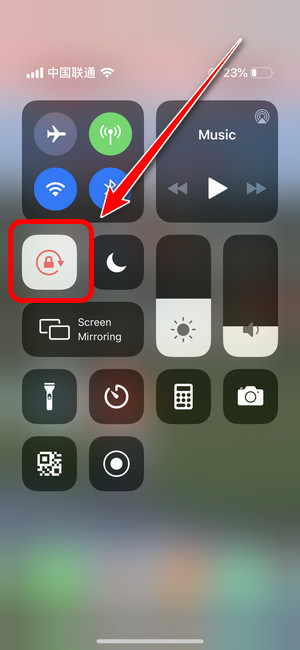
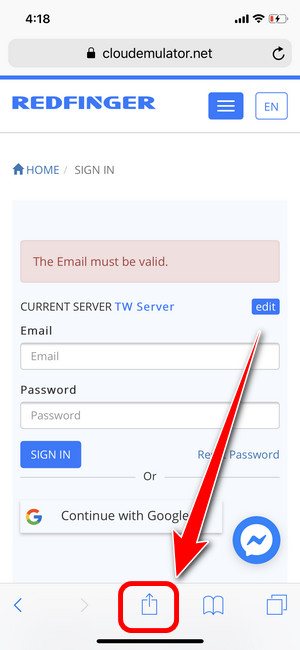
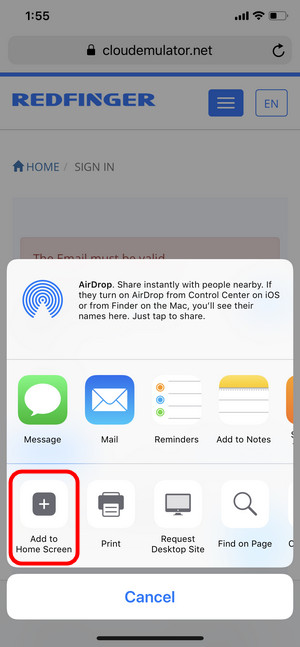
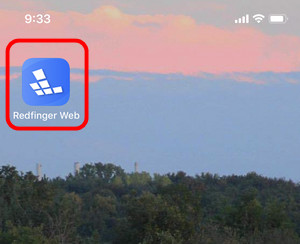
Redfinger web login guide on iOS Safari (Add to Home Screen): Open the login page at www.cloudemulator.net/sign-in.htm, complete the Redfinger web login, tap the Share icon, and then select "Add to Home Screen." Next time, open Redfinger Web from your iPhone home screen and log in again to see the device list. For a stable display, turn off auto-rotate before starting. This official guide (updated 2023-06-14) is the fastest way to get an app-like experience after logging in to Redfinger web.
Log in to Redfinger web on desktop (Chrome/Firefox) On desktop, use a modern browser and a stable network. Go to the sign-in page, complete the Redfinger web login, then select your cloud phone. Chrome, Safari, and Firefox are listed in the user guide, so teams with mixed systems only need one Redfinger web login guide. Save bookmarks, enable a password manager, and set your PC to prevent it from sleeping during long sessions.
How to use Redfinger web authorization after logging in to Redfinger web?
After logging in to Redfinger web, go to Tools > Authorization. There are two ways to access the authorization menu, and three sections within it: Cloud Phone Authorization, Use Authorization ID, and Authorization records. Set “Auth Days” for time-limited access, or enter the Authorization ID to obtain permission. Always ask the owner for approval before viewing/operating the device. This keeps access sharing controlled and recorded after logging in to Redfinger web.
Is Redfinger web login secure for business?
Security is crucial when applications and data reside in the cloud. Redfinger certifies ISO/IEC 27001 (security) and ISO/IEC 27701 (privacy), as well as three public regions—US, Taiwan, and Singapore. These signals aid vendor testing and auditing when Redfinger web login is used at team scale. If multiple instances are needed, plan capacity per region to minimize latency and maintain daily session stability.
Troubleshooting Redfinger web login: rotation, white screen, audio. If display issues occur in Safari mobile, disable auto-rotation and then try Redfinger web login again. For a white screen, clear the cache, use 5 GHz Wi-Fi, and reload. On desktop, try another supported browser and stop heavy downloads. If audio lags, lower the sound effects in the app and leave one tab open. This little tip quickly resolves most Redfinger web login issues.
Can gaming still run smoothly after logging in to Redfinger web?
Yes. After logging into Redfinger web, select the closest region (US, Taiwan, or Singapore) for a more stable session. Idle, strategy, and farming games benefit the most. For action games, reduce extra tabs and keep your network clean. Teams can test per region and save the best routes as profiles. Clear regions and audit references make scaling safer over time.
Try the best Android emulator to unleash the potential of your apps and cloud games across all platforms.
GET STARTED