Wechat
Busuness account

Looking for a smooth Android emulator experience on PC or Mac? If so, you’re likely considering LDPlayer, a popular choice that enables you to enjoy mobile apps and games on a larger screen.
This guide will walk you through the essentials of LDPlayer download and introduce you to an alternative, Redfinger cloud phone, which can enhance your Android emulator experience. Learn best practices for downloading LDPlayer, explore Redfinger’s unique features, and get practical tips for using these tools effectively.
LDPlayer is an Android emulator designed for PC and Mac users who want to enjoy mobile apps on a desktop experience. Known for its user-friendly interface and optimized gaming capabilities, LDPlayer download is ideal for people who love mobile games, AFK gaming, and app testing.
Compatible with a variety of Windows and Mac versions, LDPlayer enables users to access the Google Play Store, download applications, and enjoy Android gaming on a big screen. Whether you’re seeking to download LDPlayer for PC or using it on a Mac, LDPlayer offers an efficient, streamlined experience that competes well among emulators.
To enjoy the best Android emulation experience with LDPlayer, follow these installation steps tailored for PC/Windows and Mac users.
Visit the Official LDPlayer Website: Go to the official LDPlayer website to avoid downloading modified or unofficial versions.
Choose the Right Version: LDPlayer offers different versions, such as LDPlayer 4 (Android 7.1) and LDPlayer 9 (Android 9.0). For general gaming and app usage, LDPlayer 4 works well, while LDPlayer 9 is recommended for more recent games.
Download the Installer: Click on the download button for the version you prefer. For slower connections or offline access, the LDPlayer offline installer option is also available.
Install LDPlayer on Your PC: Open the downloaded file and follow the on-screen prompts to complete the installation.
You can adjust the installation path or leave it as the default location.
While LDPlayer is optimized for Windows, there are options to use it on Mac, though they require an extra setup. Here’s how:
Use a Virtual Machine (VM): Install virtual machine software like VirtualBox or VMware on your Mac. This will allow you to run Windows on a virtual layer within your macOS.
Install Windows on the VM: Set up a Windows OS on your virtual machine. You’ll need a legitimate Windows installation file, which you can get from Microsoft’s official website.
Download and Install LDPlayer in Windows (within the VM): Inside the virtual machine, follow the steps for PC/Windows installation:
Visit the LDPlayer website and download the preferred version.
Install LDPlayer within the virtual Windows environment and launch it once the installation is complete.
By following these steps, you can set up LDPlayer on both PC and Mac, with a seamless experience on Windows and an adaptable solution on Mac. These best practices ensure you get optimal performance and a smooth setup, making LDPlayer a reliable choice for Android emulation on desktop.
While LDPlayer is a powerful and popular Android emulator, it may not suit everyone's needs, particularly those requiring continuous app use or reduced strain on local resources. This is where Redfinger Cloud Phone comes in as an effective alternative.
Unlike traditional emulators, Redfinger operates entirely in the cloud, providing a flexible, virtual Android device that’s ideal for remote access, AFK gaming, and more. Here’s an in-depth look at Redfinger and how it stands out as a top alternative to LDPlayer.
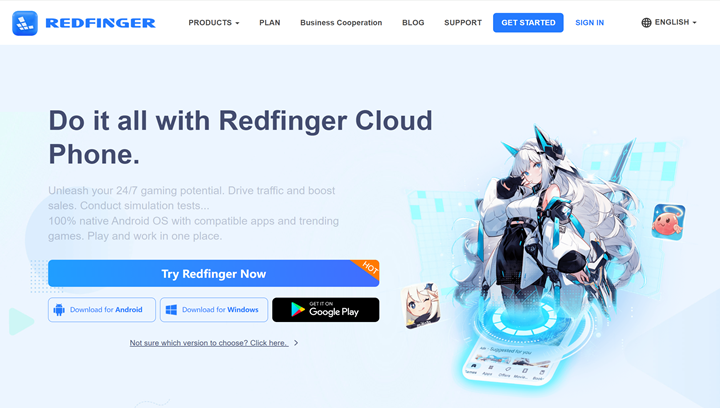
Redfinger is a cloud android emulator that offers virtual Android phones, allowing users to operate Android apps and games in the cloud. Unlike traditional Android emulators like LDPlayer, Redfinger doesn’t require installation on your PC.
Instead, users can access a virtual Android environment over the internet, allowing them to play games, manage social media, or conduct business remotely without stressing their local device’s resources.
Redfinger offers several unique features that set it apart from traditional Android emulators. By leveraging the power of the cloud, Redfinger Cloud Phone provides a seamless experience with benefits that cater to users looking for uninterrupted app access, minimal resource use, and a secure environment.
Below are some of the standout features that make Redfinger an excellent choice for AFK gaming, social media marketing, and more.
1. Cloud-Based Convenience
Redfinger operates entirely in the cloud, allowing users to access a virtual Android device without relying on their physical device’s storage, memory, or processing power. This feature is especially useful for those who want to run resource-heavy applications, like games or social media management tools, without slowing down their local device.
2. Access 24/7
Since Redfinger’s virtual devices operate in the cloud, they can run continuously, even if your personal device is turned off or disconnected. This makes Redfinger ideal for AFK (away-from-keyboard) activities, such as farming resources in idle games, automating app functions, or running background tasks for social media accounts. If you are looking for the best game hosting services, try Redfinger!
3. Cross-Device Access
Redfinger’s cloud-based nature allows users to access their virtual Android device from any compatible device, be it a smartphone, tablet, or computer. This cross-device accessibility means you can check on your apps and games or manage your social media activities from anywhere, giving you complete flexibility and control.
4. Efficient Multi-Account Management
Redfinger enables users to manage multiple accounts without logging in and out repeatedly, a significant advantage for social media marketers, game players with multiple accounts, or anyone managing multiple profiles. This feature helps streamline activities, saving time and reducing hassle.
5. Optimized for Security
Security is a top priority with Redfinger. Operating on isolated cloud servers, Redfinger protects users from malware and data risks associated with installing applications on local devices. Redfinger’s cloud environment provides a secure and private platform to handle sensitive information, making it suitable for business-related activities.
6. Low Data and Battery Consumption
Because Redfinger offloads processing to the cloud, it significantly reduces battery and data consumption on the user’s device. This is especially beneficial for those who need to keep apps running for extended periods, like AFK gamers or social media managers, allowing for a smooth, low-energy experience.
For AFK (away-from-keyboard) gaming and social media marketing, Redfinger is an ideal choice. Here’s how you can use it effectively:
1. Create a Redfinger Account
Visit the Redfinger website and create an account. Choose a subscription plan based on your needs. Redfinger offers various plans tailored to different usage patterns, including continuous usage options for AFK gaming or frequent app access.
New users will get a six-hour free trial before making the first purchase. Existing users can enjoy an endless discount package for a better experience.
2. Download the Redfinger App
Android: You can download the Redfinger app directly from the Google Play Store on Android devices. Simply search for “Redfinger” and install it. Or you can go to Redfinger's official website and click the “Download for Android” button, which will enable a quick and safe download on your local device.
iOS/Mac: Currently, Redfinger does not offer a dedicated installation package for iOS or macOS. However, you can access Redfinger via web browsers such as Chrome, Safari, and Firefox. This allows iOS and Mac users to log in to their cloud-based Android device conveniently without needing a separate app.
Windows: If you’re using a Windows-based PC, you can also download the Redfinger app from the official Redfinger website, where a Windows installation package is available.
3. Set Up Your Cloud Phone
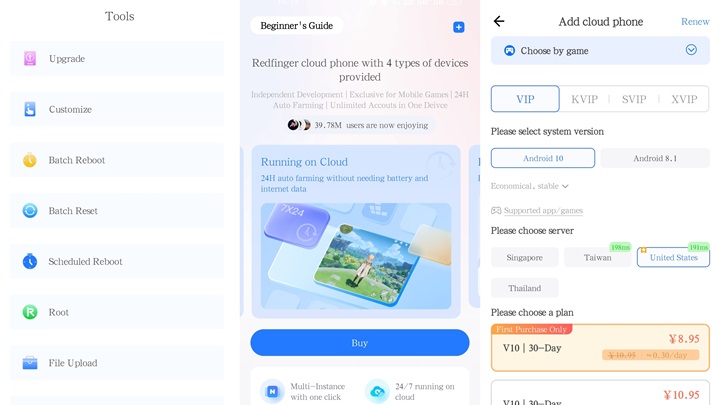
Open the Redfinger app and log in with your account details. Redfinger allows you to pick from different Android OS versions based on compatibility with the apps or games you want to use. Once you have your virtual device set up, you can install applications directly from the Play Store or APKs as required.
4. Using Redfinger for AFK Gaming
Install Your Game: From the cloud phone’s Google Play Store, download the game you wish to run in AFK mode.
Start and Minimize: Launch the game, set it up for AFK mode, and then minimize or close the app. Redfinger keeps it running in the cloud, allowing your game to continue without consuming local device resources.
Check Progress Anytime: Open Redfinger on any device to monitor your game progress, collect rewards, and make any adjustments as needed.
5. Using Redfinger for Social Media Marketing
Install Social Media Apps: Download and install the social media apps you want to manage from the cloud phone’s Google Play Store.
Automate Posts and Engagement: Use scheduling tools available within the apps to automate posts, monitor activity, and respond to comments as needed.
Manage Multiple Accounts: Redfinger allows you to manage multiple social media accounts without logging out, making it easy to switch between business profiles and ensure continuous engagement on all platforms.
Update Regularly: Keep LDPlayer up to date to access the latest features, performance improvements, and security patches.
Adjust Graphics Settings: For smoother gameplay, adjust graphics settings according to your device’s specifications. Higher-end PCs may handle advanced settings, while older PCs can benefit from lower resolutions to avoid lag.
Use Multi-Instance Manager: LDPlayer’s Multi-Instance feature allows you to run multiple Android apps simultaneously, perfect for gamers who manage multiple accounts or social media marketers looking to handle various platforms at once.
Whether you’re looking to download LDPlayer for PC or explore alternatives like Redfinger, there are plenty of options to enjoy Android apps on a larger screen. LDPlayer is an excellent choice for those seeking a downloadable emulator with customizable settings, while Redfinger’s virtual android phone provides unparalleled flexibility and ease of use. Choose the solution that best fits your needs, and get ready to enhance your Android experience on desktop.
If you want the fastest path, start your LDPlayer download from the official source, pick LDPlayer 9 for newer games, and keep drivers current. When local resources are tight—or you just want a cleaner desk—try Redfinger Cloud Phone on CloudEmulator.net. It delivers a ready‑to‑use Android environment with steady performance and cross‑device access. Give it a spin, then choose the setup that fits your day. If you need long‑term access and less maintenance, Redfinger is our top recommendation.
Visit the official LDPlayer website, choose the latest version compatible with your system, and follow the download and installation instructions. For those with limited connectivity, consider using the LDPlayer offline installer.
Yes, LDPlayer is safe to download and use. However, always download from the official website to avoid malware or modified versions.
LDPlayer doesn’t natively support macOS, but Mac users can explore additional tools to run Android emulators on their devices. Alternatively, consider cloud-based options like Redfinger to avoid compatibility issues.
The safest LDPlayer download for PC is from the official site. Pick the version that fits your game list, then use the standard installer or the LDPlayer offline installer. Avoid third‑party mirrors. Check file hash if available. LDPlayer 4 runs Android 7.1, while LDPlayer 9 uses Android 9.0, which helps with newer titles. Tip: keep drivers up to date, and disable risky antivirus exclusions unless required. This reduces failed installs during your LDPlayer download.
Image alt suggestion: ldplayer-download-for-pc-windows-11-installer
LDPlayer is optimized for Windows. For Mac, you can create a Windows virtual machine with VirtualBox or VMware, install Windows, and then complete the LDPlayer download inside the VM . This path takes more steps, but it works if you must test on macOS devices. Keep your VM resources modest but steady, and use the LDPlayer offline installer if your connection is unstable. Search “LDPlayer for Mac” guides if you are new to virtualization.
If your games need Android 9 or 64‑bit, download LDPlayer 9. For lighter titles or legacy apps, LDPlayer 4 (Android 7.1) is fine . In general, LDPlayer 64‑bit vs 32‑bit comes down to game support and RAM headroom. Most players now prefer “download LDPlayer 9” for better compatibility. If you run older gacha or indie games, test both and keep the instance that boots faster and uses fewer resources.
LDPlayer is widely used, but safety depends on your download source and habits. Stick to the official LDPlayer download page, avoid bundled installers, and review permissions in Windows. A related LDPlayer app shows 1,000,000+ installs and 7,770 reviews on Google Play, updated on 2026‑02‑09, reflecting broad community interest rather than a direct security rating . When in doubt, use the LDPlayer offline installer and verify the digital signature. Searching “is LDPlayer safe” often highlights these basics.
There is no one‑size‑fits‑all spec. For smoother results on Windows 11, close background apps, enable virtualization in BIOS, and ensure your GPU driver is current. Keep at least 10–15 GB free storage per instance and place your LDPlayer download installer on an SSD. If you multitask, split instances across different disks. Searching “LDPlayer Windows 11” tips helps you fix throttling or strange frame drops faster than random registry tweaks.
First, reboot and try the latest package. If stuck at 94%, switch to the LDPlayer offline installer and reinstall cleanly. Reset network, disable VPN/proxy, and check firewall rules. For “fix LDPlayer not working” issues after an update, create a fresh instance and import only what you need. Keep Windows updated and remove conflicting capture tools. Many players recover after a driver refresh and a clean, official LDPlayer download.
Yes. Download LDPlayer 9 if you need 64‑bit and newer APIs; LDPlayer 4 is fine for older games  . LDPlayer 64‑bit vs 32‑bit performance varies by title. Multi‑instance helps you test or reroll, but keep CPU/GPU temps in check. If you chase stability over raw frames, one instance per disk partition works well. When you hit limits on local hardware, consider a cloud emulator alternative to keep your desktop free.
If your PC is busy or low‑spec, try Redfinger Cloud Phone from CloudEmulator.net. It runs Android in the cloud, so you can play or test without local load. It’s always‑on, easy to access from multiple devices, and ideal when you don’t want more Windows services. Our editorial pick for most users is Redfinger thanks to simple setup and consistent uptime. The blog you are reading was last updated in 2024‑10‑31, and we keep refreshing it with real‑world checks.
Try the best Android emulator to unleash the potential of your apps and cloud games across all platforms.
GET STARTED