Wechat
Busuness account
Auto clickers have become essential tools for gamers, developers, and even casual users who need to automate repetitive clicking tasks on their computers. Whether you're looking to streamline your workflow or enhance your gaming experience, finding the best auto clicker download is crucial.
In this comprehensive guide, we will explore different methods to download auto clickers, highlight the best platform for auto clicker download—Redfinger Cloud Phone—and answer some common questions to ensure you have all the information you need.
When it comes to downloading auto clickers, there are several options available, each with its unique features and benefits. Below, we’ll explore some of the most popular auto clicker download platforms, along with tips on how to choose the right one for your needs.
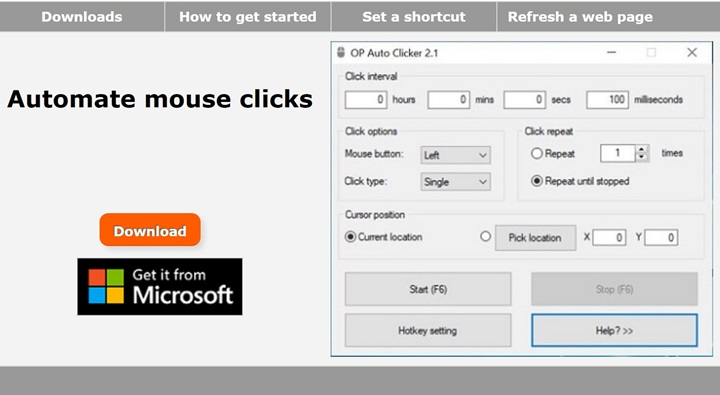
OP Auto Clicker is one of the most popular auto clickers available today, known for its simplicity and reliability. With an easy-to-use interface and minimal setup, OP Auto Clicker is a top choice for beginners and advanced users alike. To download OP Auto Clicker, visit the official website and follow the straightforward installation instructions. The program allows you to set the interval between clicks, the number of clicks, and even the location of the clicks, making it a versatile tool for various tasks.
GS Auto Clicker is another excellent option, particularly favored by users looking for a free and easy-to-use solution. This lightweight software is designed to help you automate mouse clicks with minimal effort. To get your free auto clicker download, simply search for GS Auto Clicker online, access the official download page, and install the software on your device. GS Auto Clicker is ideal for users who need a reliable automatic clicker download for gaming or productivity tasks.
For users who require ultra-fast clicking speeds, Speed Auto Clicker is the go-to choice. This software is specifically designed to provide rapid-fire clicks at customizable intervals, making it perfect for tasks that demand high-speed automation. To complete your Speed Auto Clicker download, visit the official website, choose the appropriate version for your operating system, and follow the installation steps. Speed Auto Clicker offers a range of features, including customizable hotkeys and click intervals, ensuring you can tailor the program to your specific needs.
This lightweight auto clicker stands out for its utter simplicity. With a quick and easy download, you can start using it immediately, without any need for unpacking or third-party software. AutoClicker by Mousetool offers customization choices, allowing you to target specific areas of the screen and set a desired number of clicks.
While there are numerous platforms and methods to download an auto clicker, Redfinger Cloud Phone stands out as the ultimate solution for both Android and PC users. Redfinger offers a unique cloud-based environment that allows you to run Android apps, including downloading auto clickers, on a virtual device in the cloud.
Redfinger is a cloud-based Android emulator that enables users to access a virtual Android device from their PC, Mac, or mobile device. Unlike traditional emulators, Redfinger operates entirely in the cloud, meaning you don’t need to install any heavy software on your device. This makes it an ideal platform for running auto clickers and other automation tools without straining your device’s resources. With Redfinger, you can enjoy a seamless Android experience with full access to the Google Play Store and other app repositories, making it a perfect platform for your auto clicker download needs.
Downloading and running an auto clicker on Redfinger is a straightforward process. Follow these steps to get started:
Sign Up for Redfinger: For iOS and Mac users, visit the Redfinger website and click the ‘Try Redfinger free’ to sign up for an account. Get a 6-hour free trial or choose from various subscription plans based on your usage needs.
If you are an Android or Windows user, feel free to download the Android APK from the official website, get the app on Play Store, or install the Windows client on your PC.
_32rDTV1AUY_3FFI86ptX0.png)
Access the Cloud Phone: Once you’ve created an account, log in to Redfinger and access your virtual Android device. You can do this from any device with an internet connection.
Auto Clicker for Download: Open the Google Play Store on your Redfinger device and search for your preferred auto clicker, such as OP Auto Clicker 3.0 or GS Auto Clicker. Click "Install" to download the auto clicker directly onto your cloud phone. So 'how to get an auto clicker with Redfinger' has become a breeze.
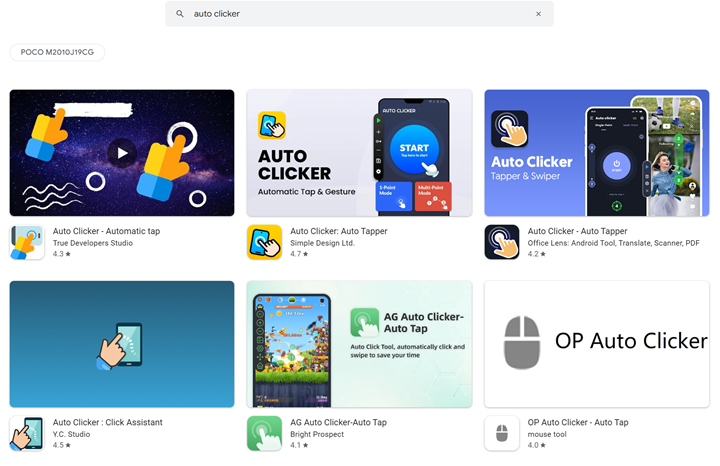
4. Configure and Use: After installation, launch the downloaded auto clicker app and configure it according to your needs. You can set click intervals, locations, and other parameters just as you would on a physical Android device, making it a highly efficient automatic clicker download option.
Redfinger offers several advantages that make it the ultimate platform for downloading and using auto clickers:
No more storage woes: Offload your apps and games to Redfinger and free up valuable storage space on your device. With the ever-increasing size of app and game files, this feature is a game-changer.
Ultimate privacy and security: Since Redfinger works on a cloud-based virtual device, your apps and private data are completely separate from your physical device. This ensures maximum privacy and security.
Multi-device compatibility: Redfinger supports various devices, including smartphones (both Android and iOS), tablets, and PCs (Mac and Windows). This multi-device compatibility ensures that you can manage your apps and games seamlessly across different platforms.
24/7 access to games and apps: With Redfinger, you can access your desired apps and games from any device, anywhere, at any time. It’s like carrying your entire Android device in your pocket, ready to use whenever you need it.
Cost-effective solution: Redfinger offers various pricing plans to suit your diverse needs and budgets. Whether you're a casual user or a hardcore gamer, you’ll find a plan that fits your requirements. New users will get a six-hour free trial before making the first purchase. Existing users can enjoy an endless discount package for a better experience.
The best auto clicker download should be safe, lightweight, and easy to configure. If you need 24/7 tasks, consider running your auto clicker download on a cloud phone to avoid heat and battery drain. Redfinger cloud phone offers stable sessions and clear compliance signals, which is helpful for audits and team use. It publicly mentions ISO/IEC 27001 and ISO/IEC 27701, plus nodes in the US, Taiwan, and Singapore.
A free auto clicker download can be safe if it comes from official stores or the developer’s site. On Google Play, a popular Auto Clicker shows 10,000,000+ installs, a 4.2 rating, and about 338k reviews, last updated on 2025‑10‑16—helpful trust signals for first‑time users. Always scan files, review permissions, and test with a throwaway account before long sessions.
For Android, pick an auto clicker download that supports AccessibilityService, quick hotkeys, and import/export of presets. Install from Google Play or the official site, then record taps and set intervals. If your phone overheats, move the same auto clicker download onto a cloud phone and keep sessions running off‑device. This keeps gaming loops stable while your handset stays cool.
On Windows 10/11, common picks include OP Auto Clicker download, GS Auto Clicker download, and Speed Auto Clicker download. Start with a portable build if you hate installers, then set click type, interval, and stop hotkey. For long loops, consider pushing your workflow to a cloud phone so tasks persist even if your laptop sleeps.
A free auto clicker download works for simple loops and casual games. Paid tools add combo clicks, random delays, and multi‑target routes. If your use is business‑critical, run the auto clicker download on a secure cloud phone instance, isolate projects, and back up configs weekly. This reduces interruptions and makes handoffs easier for teams.
Whichever you pick, keep profiles separate for different games/apps and avoid violating in‑app terms.
Check the game’s policy. Some block automation. Add random delays, use human‑like intervals, and cap sessions. If you need accounts for testing or marketing, a cloud phone with isolated instances helps reduce correlation. Keep logs for audits and be ready to switch off if a title disallows tools.
Running your auto clicker download on a native Android cloud device keeps loops alive 24/7, even if your local phone is off. Redfinger lists three public regions—US, Taiwan, Singapore—for lower latency across SEA and North America, and it cites ISO/IEC 27001/27701 to support security reviews. This makes it a dependable base for AFK grinding or multi‑account workflows.
User quotes
If you rely on an auto clicker download for long sessions, the winning combo is simple: choose a safe source, keep profiles isolated, and run heavy loops on a cloud phone. On cloudemulator.net, Redfinger delivers a native Android cloud device with more than three public regions (US, Taiwan, Singapore and more) and security frameworks like ISO/IEC 27001/27701—credible signals when work and gaming blend. Try it today, then upgrade to paid plans when you need higher specs or more instances.
Whether you need a simple clicker for casual use or a robust solution for complex tasks, the options discussed in this guide will help you find the perfect auto clicker download.
Try the best Android emulator to unleash the potential of your apps and cloud games across all platforms.
GET STARTED